How to Turn On Backlighting on Your Logitech Wireless Keybogard
A comprehensive guide to activating, adjusting, and troubleshooting the backlighting features on popular Logitech wireless keyboards like the MX Keys and Craft series.
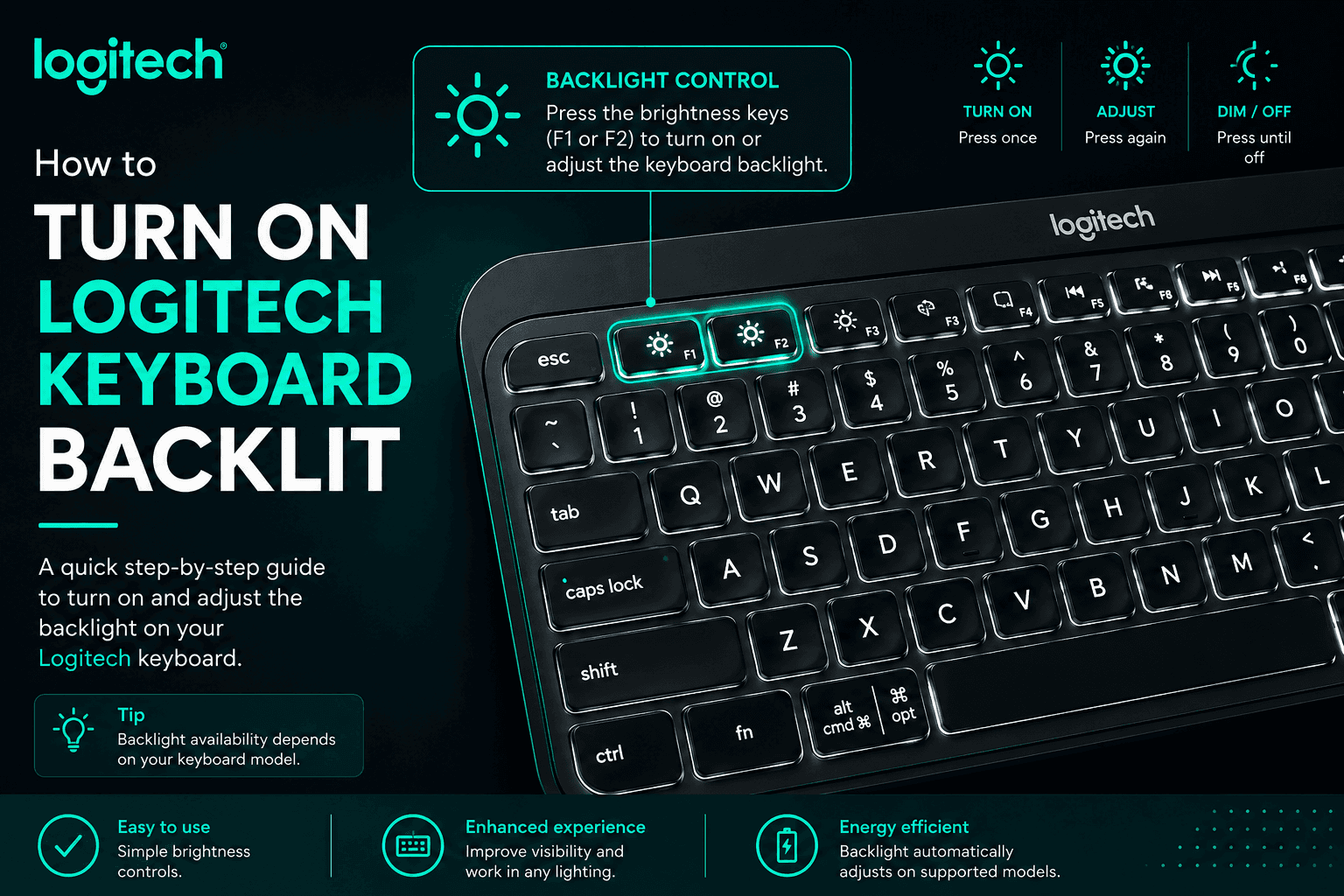
Using the Dedicated Ambient Light Function Keys
Locate the brightness adjustment keys on the top row of your Logitech keyboard, usually found on the F6 and F7 keys. Pressing the 'Brighten' key will instantly activate and increase the intensity of the dual-layer LED backlighting, while the 'Dim' key lowers it or turns it off completely to save battery power.
Activating Intelligent Hand Proximity Automation
Many premium Logitech keyboards feature built-in proximity sensors that automatically detect when your hands approach the device. To ensure this is running, place your hands over the keys; the keyboard will instantly illuminate and then fade away seamlessly when you step away, optimizing your battery life without manual intervention.
Customizing Lighting Patterns via Logitech Options Plus Software
For advanced control, download and open the Logi Options+ application on your computer. Navigate to your specific keyboard dashboard, click on the 'Backlighting' menu, and toggle the smart illumination settings to adjust lighting duration, change effects, or disable the battery-saving sensor entirely.